

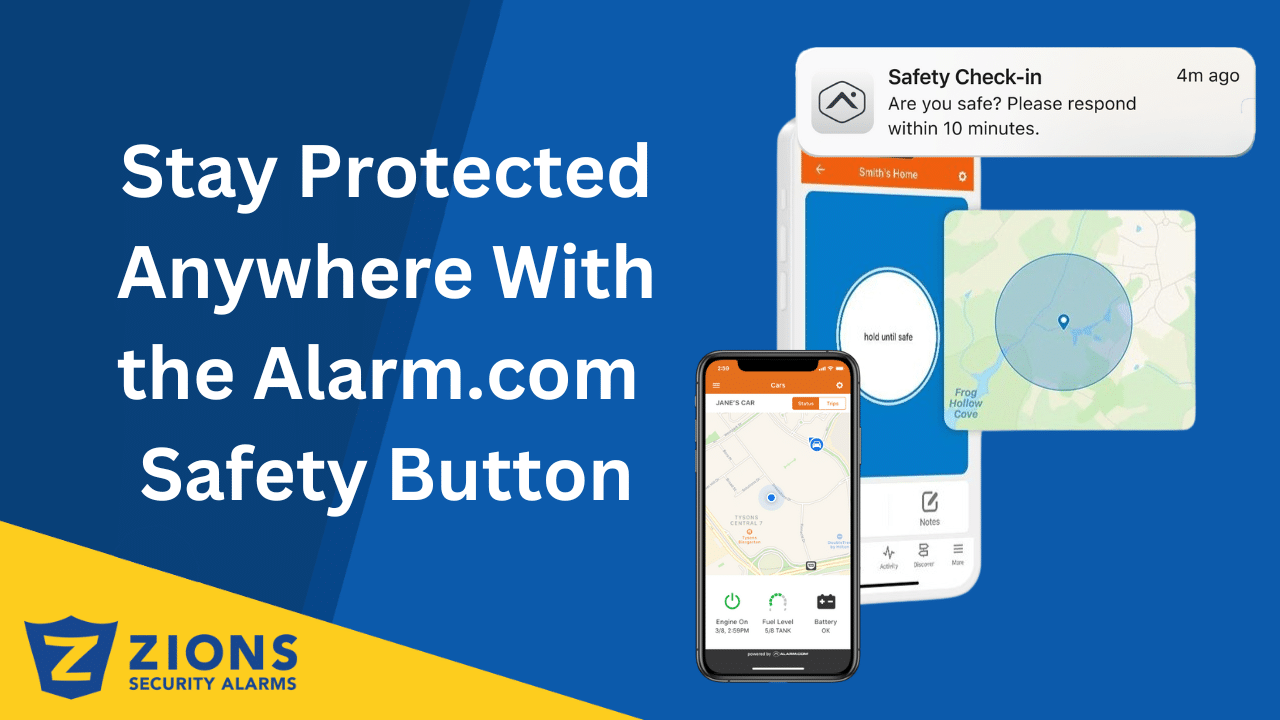
13 Jan Stay Protected Anywhere With the Alarm.com Safety Button
Personal safety is no longer limited to what happens inside your home. With Alarm.com’s new Safety Button feature, help can be just one press away—no matter where you are. Built directly into the Alarm.com App, the Safety Button allows users to quickly connect with police, fire, or emergency medical services when they feel unsafe or need immediate assistance.
This feature is designed for real-life situations where calling 911 may not feel possible, safe, or fast enough. Whether you’re walking alone, meeting someone unfamiliar, or facing a medical emergency, the Safety Button provides a simple and discreet way to get professional help using your smartphone.
What Is the Alarm.com Safety Button?
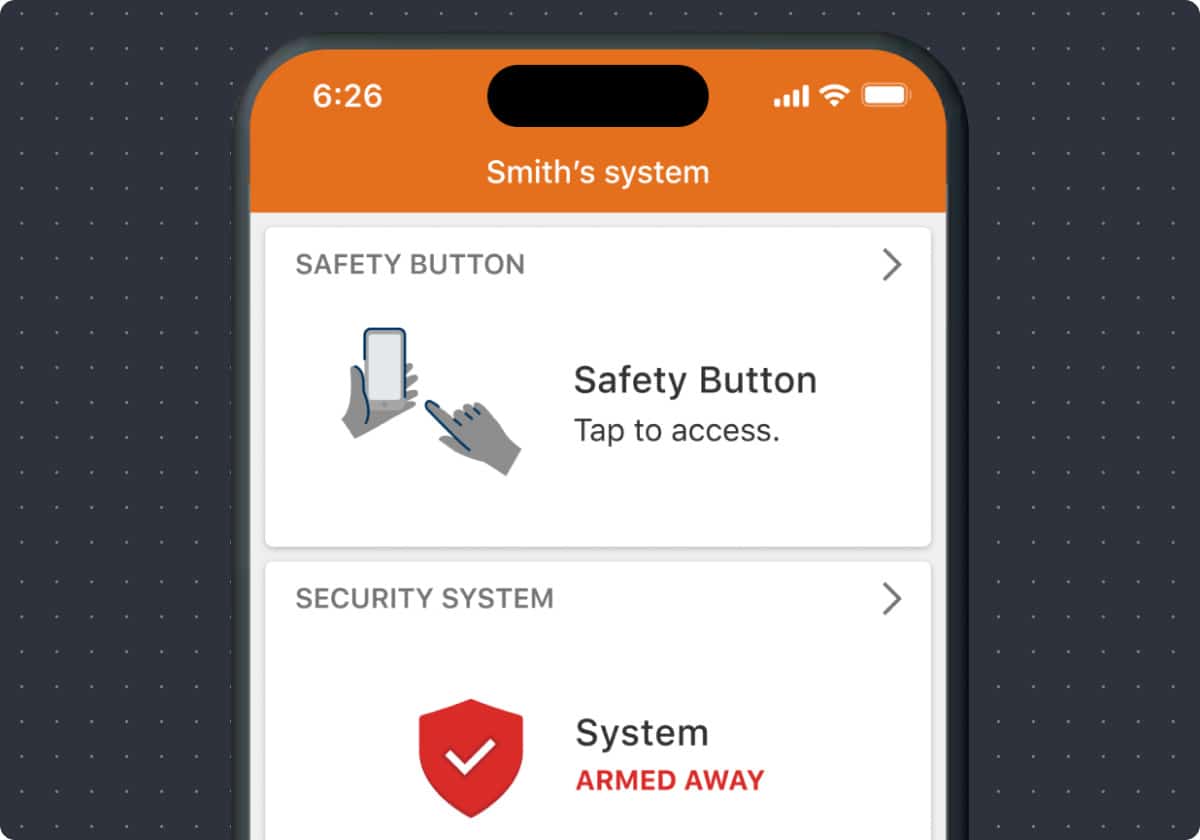
The Safety Button is an in-app personal safety feature that connects users to trained emergency operators using their phone’s real-time GPS location. By pressing and holding the button in the Alarm.com app, users can initiate an emergency request that is routed directly to a professional monitoring station.
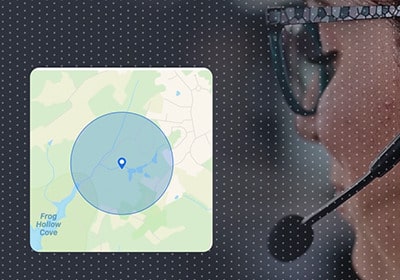
If the user cannot respond or confirm they are safe, emergency responders are automatically dispatched to the user’s last known location. This makes the Safety Button a powerful layer of protection beyond traditional alarm systems.
How the Safety Button Works
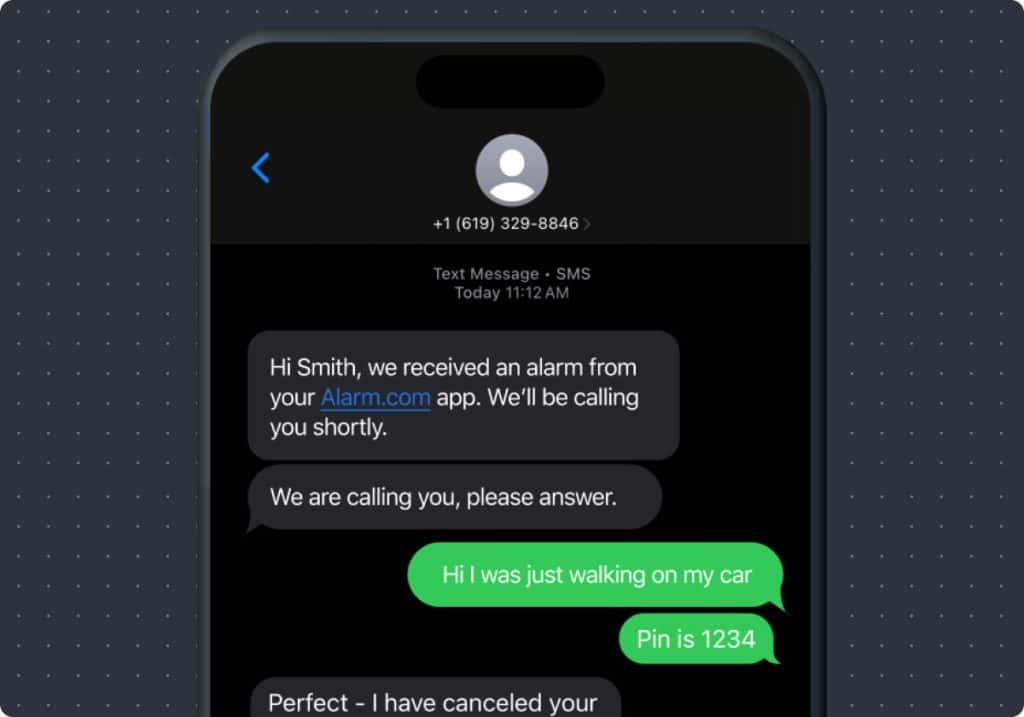
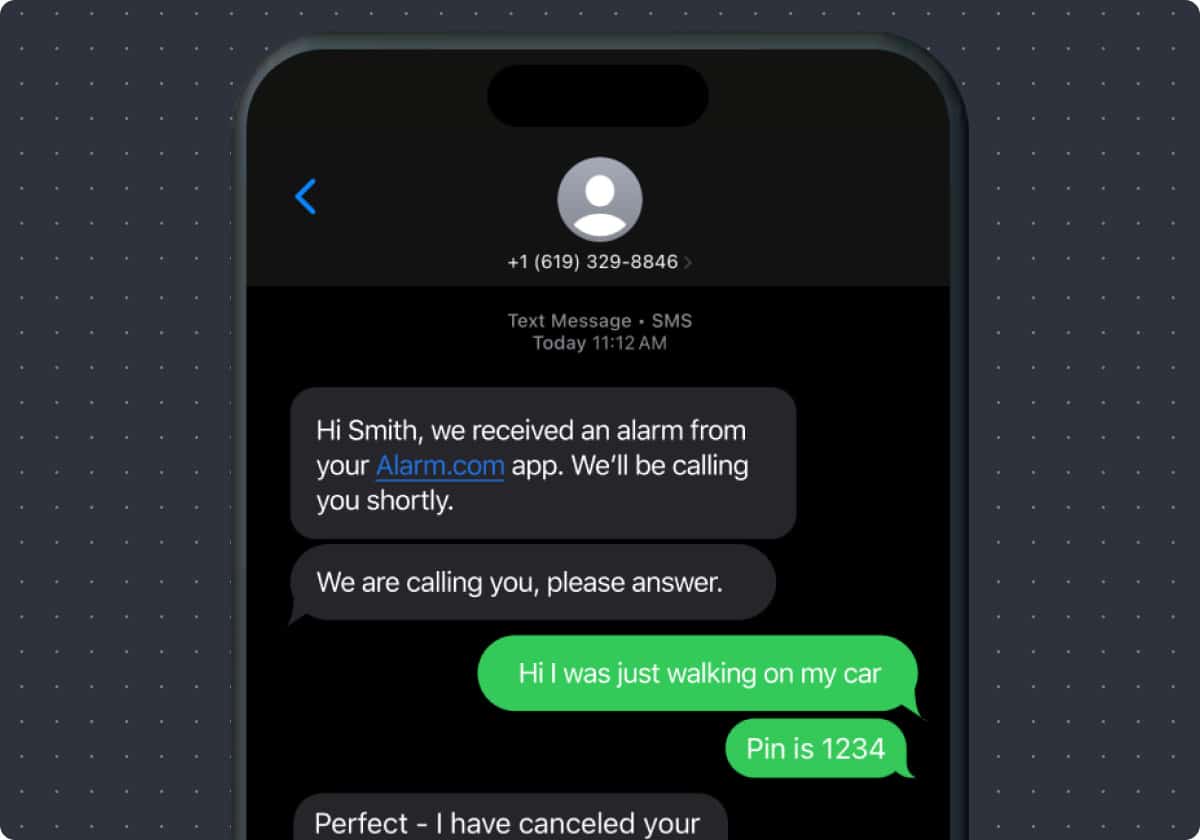
Once activated, the Safety Button sends critical information—including your name, phone number, and precise location—to a trained operator. The operator will attempt to contact you by text or call. If there is no response or the situation is confirmed as an emergency, first responders are dispatched immediately.
This feature is especially helpful in situations where speaking out loud isn’t safe or possible.
How to Set Up the Safety Button in the Alarm.com App
Setting up the Safety Button only takes a few minutes and is done directly in the Alarm.com App.
- Log in to the Alarm.com app

- In Set up Safety Button, tap Get Started.
- Tap Continue.
- Enter your phone number, then tap Next.
- You will receive a 6-digit verification code by text message. Enter that code, then tap Verify
◦ For information on what prevents a text message from being received, see “Customer is not receiving text notifications.” - Enter your first and last name
- Sharing your location is required for the accuracy and success of this feature.

◦ If location settings have not yet been enabled, tap Ok, then tap Allow while using the App.
◦ It is required to update the location permissions to Always so emergency responders are provided an accurate location. Tap Go To Settings and change the location permissions to Always and tap the Precise Location toggle switch to enable it. - Once this is changed, return to the Alarm.com app, then tap Next.
- Practice pressing and holding the Hold until safe button and then releasing when instructed.
- An image of your location will display. Tap What If I Don’t Need Help?.
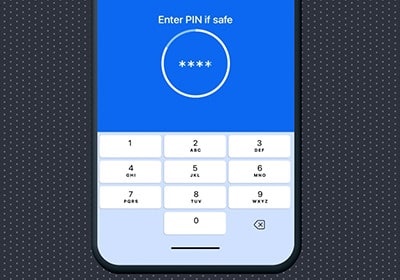
- Enter your 4-digit PIN, then tap Create.
- Tap Done
Using the Safety Button During an Emergency
The Safety Button can be triggered using the Alarm.com app.
- Log in to the Alarm.com app
- Tap Safety Button.
- Tap and hold down the button.
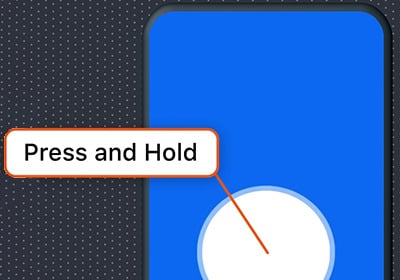
- When Enter PIN if safe displays, the PIN code can be entered within 10 seconds to cancel the alert
After releasing it, you have a short window to cancel the alert using your PIN if help is not needed. If the alert is not canceled, an operator will begin the emergency response process immediately.
Safety Button Emergency Contacts
The Alarm.com Safety Button adds a new level of personal security by combining mobile technology, GPS accuracy, and professional monitoring—all without requiring additional hardware. It’s ideal for individuals who wants peace of mind wherever they go. While it does not replace calling 911, it provides a faster, more discreet, and more connected way to get help in critical moments.
Note: The police and first responders will determine whether to contact a customer’s emergency contact based on their standard protocol for responding to an emergency. Alarm.com will not contact the customer’s emergency contact when an event is triggered.
To use Safety Button Emergency Contacts
Note: There is no limit to the number of contacts that can be added.
- Log in to the Alarm.com app.
- Tap Safety Button.
- Tap Settings
- Tap Emergency Contacts
- Tap Add Contact.
- Add new or existing emergency contact information.
◦ To add a new contact, enter the desired name and phone number
◦ To add an existing contact, tap Add From Contact List, then select the desired contact. - Tap Submit.
Final Thoughts
The Alarm.com Safety Button is a powerful addition to modern security, extending protection beyond the home and into everyday life. By combining real-time GPS location, professional monitoring, and discreet in-app activation, it gives users a reliable way to request help when it matters most.
Whether you’re walking alone, traveling, or facing an unexpected emergency, the Safety Button offers peace of mind knowing that police, fire, or medical assistance can be reached quickly without making a phone call. It’s a smart, practical feature that reinforces Alarm.com’s commitment to keeping users safe—wherever they are.
No Comments