


01 Sep Personalize Voice Alerts with AI-Powered Audio Deterrence
Alarm.com has just unveiled a powerful new feature that gives users full control over how their security system speaks. With the new Personalized Voice Response capability, part of the enhanced AI Deterrence (AID) service, property owners can now set custom voice alerts that are tailored to the situation, visitor, or environment.
This upgrade goes far beyond standard alarms—it’s smart, adaptive, and sounds just like a live person.
Smarter Crime Deterrence with Adaptive Audio
Alarm.com’s AI Deterrence (AID) uses advanced video analytics and AI to recognize intruders, including their location and clothing details. The camera immediately plays a custom verbal warning when it detects an intruder, simulating a live monitoring agent without the cost or delay of a central station’s two-way talkdown. (To create an AID recording rule, follow this blog post)
Example:
“Hey you, wearing a black shirt and blue jeans, standing by the door, you are trespassing on private property. Leave immediately.”
These voice prompts can:
- Match the tone to the scene (e.g., angry, neutral, friendly).
- Mention specifics like clothing or activity.
- Randomize phrasing to sound more natural.
Personalize the Message — Your Way
With the new Custom Response feature, you have complete control over what your security system says. Using text-to-speech technology, you can write your own alerts and select from a range of voices and tones—from calm and friendly to firm and commanding.
A Few Examples:
- “Hi there, this property is under video surveillance. You’re being recorded.”
- “This is a private area. Please leave immediately or authorities will be notified.”
- “We are not accepting visitors at this time. Please return during business hours.”
Whether you’re running a retail storefront, managing a commercial building, or monitoring your home after hours, you can now personalize voice alerts that reflect your brand, tone, or preferences.
Pro tip: Custom responses don’t count against your monthly AID event quota, so you can personalize freely.
Response configuration modes
Users can now configure different AID response modes and voices to meet their needs and respond to visitors in different scenarios. Just create a new recording rule with AID enabled and customize as desired.
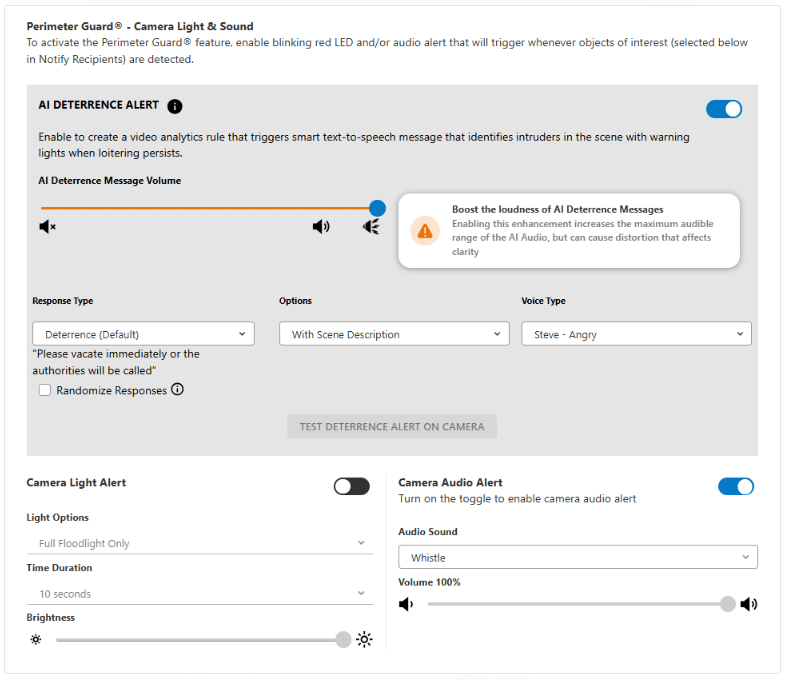
To customize your responses with AI Deterrence follow this steps:
- Log in to the Customer website
- Click Video
- Click Recording Rules
- Click Add New Rule
- Click to select Video Analytics.
- Click to select the desired video camera.
- In Select Type, click to select the desired rule type.
- Click Next.
- In Scenery, click to select the setup location.
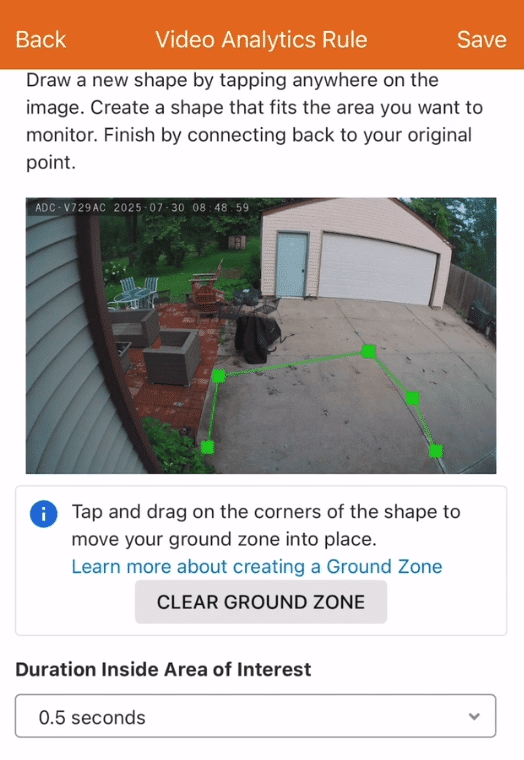
- In Recording Rule, click Only during the following times to select specific timeframes for the recording rule with AID enabled to be active.
- Click the AI Deterrence Alert toggle switch to enable AI Deterrence.
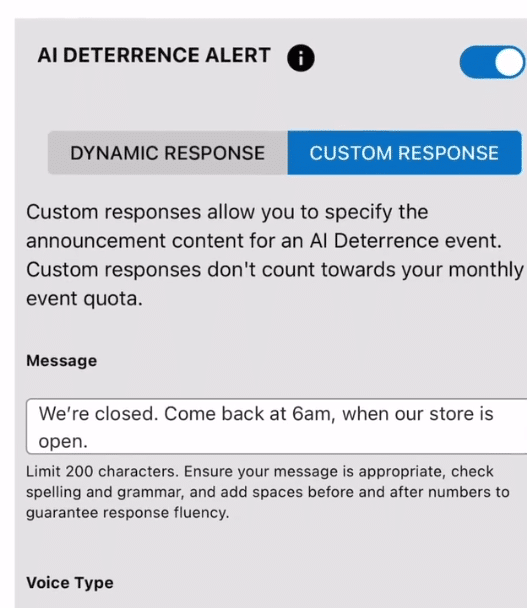
- In Message, enter the desired response.
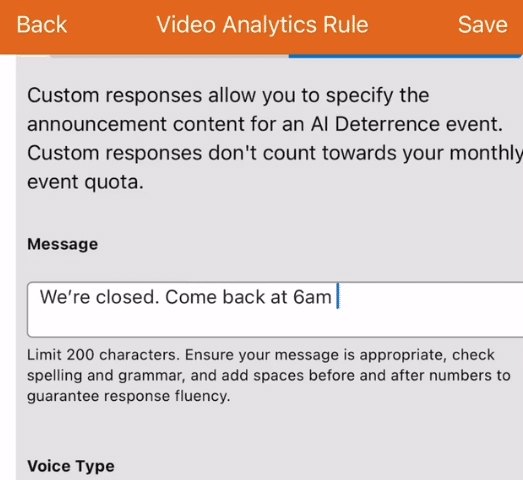
- Using the Voice dropdown menu, select the desired voice and tone for the message.
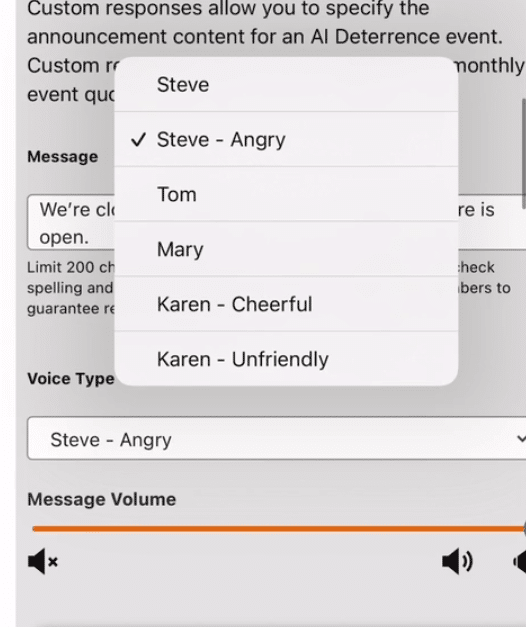
- Confirm the rest of the recording rule is configured as desired.
- Click Save.
Built for All Kinds of Situations
The flexibility of Alarm.com’s system makes it ideal for:
- Homes — Warn off late-night lurkers from the driveway or backyard.
- Businesses — Let visitors know when the property is closed or being monitored.
- Delivery scenarios — Politely inform drivers to leave packages or messages.
Here are a few example message modes:
- Trespassing: “You are trespassing. Leave immediately.”
- Property Closed: “This location is currently closed. You are being recorded.”
- Not Accepting Visitors: “We’re not accepting visitors at this time. Please come back later.”
- Leave a Message: “I can’t come to the door right now. Please leave a message.”
Compatible Cameras:
This feature is available for select Alarm.com cameras, including:
- Alarm.com Indoor 1080P Wi-Fi Camera with firmware version 0.0.5.549+
- Alarm.com 1080p Indoor Wi-Fi Camera with firmware version 0.8.2.048+
- Alarm.com Outdoor Wi-Fi Camera with Two-Way Audio with firmware version 0.8.2.048+
- Alarm.com Pro 1080P PoE Audio Bullet Camera with firmware version 0.8.2.048+
- Alarm.com Wifi Flood Light Camera with firmware version 0.8.2.048+
(Note: Each must be on the latest firmware and have audio and video analytics enabled.)
Best of All? It’s Easy to Set Up
To add a Custom Response to an AID recording rule:
- Log in to the Customer website
- Click Video
- Click Recording Rules.
- Click the pen sign to edit an existing rule, or click Add New Rule to create a new one
- In AI Deterrence Alert, click Custom Responses
- In Message, enter the desired response. (Note: Make sure the text entered in the Message field uses correct spelling and grammar, and add spaces before
and after numbers.) - Using the Voice dropdown menu, select the desired voice and tone for the message
- Confirm the rest of the recording rule is configured as desired
- Click Save.
Whether you’re protecting your home, managing a retail space, or want more control over how your security system responds to people, Alarm.com’s new voice personalization feature delivers a smarter, more human-like deterrent experience.
Contact Zions Security Alarms today to enable AI Deterrence and take control of your property’s voice.
No Comments