

29 Apr I’ve Run Out of Clips on Alarm.com, What Should I Do?
I’ve Run Out of Clips on Alarm.com, What should I Do?
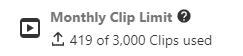
If you use Alarm.com cameras, you’ve probably noticed there’s a monthly limit on how many video clips your system can upload. One important thing to understand is that deleting clips does not reset or reduce your usage—once a clip is uploaded, it counts toward your monthly total.
So what can you do when you hit your limit?
What Happens When You Reach Your Clip Limit?
When you reach your monthly clip limit, your recording rules may pause. This means your system may stop recording new cloud clips until adjustments are made. While this can be frustrating, there are several ways to manage your usage and avoid missing important footage.
Practical Ways to Reduce Clip Usage
Here are some effective strategies:
-
- Adjust your recording rules
Try deleting and recreating your rules. When doing so, increase the object size to reduce unnecessary recordings. - Limit duplicate rules
Make sure each camera only has one active recording rule to avoid redundant clips. - Change the length of time in the area
Adjust how long motion must be present in the area before a clip is recorded. Increasing this time can help avoid false or unnecessary recordings. - Resize ground zones
Fine-tuning your ground zone can help minimize false alerts from things like bushes, headlights, or small animals.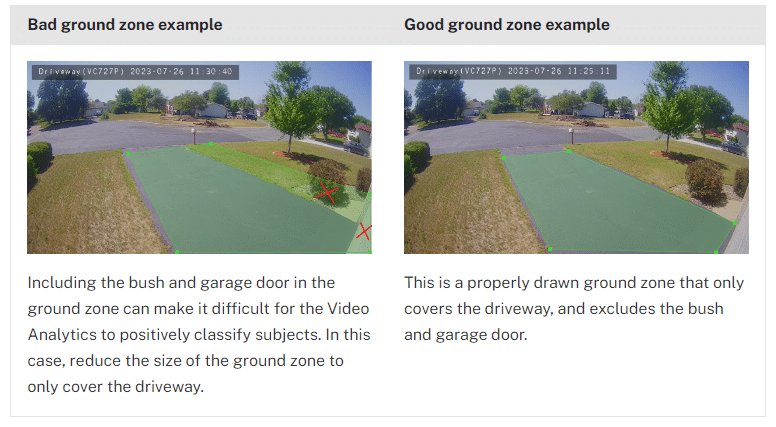 5. Increase the delay between clips
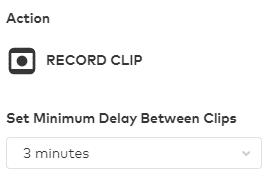
If your cameras are recording too frequently, extend the time between recordings (for example, 5–10 minutes). This can significantly reduce total clip usage over the month.
 6. Provide feedback to Alarm.com
Reporting detection issues helps improve object recognition and reduces unnecessary recordings over time.
Additional Options to Consider
- Upgrade your clip plan
You can add more clips to your account—for example, an additional 5,000 clips per month for an additional $5/month. This is often the simplest solution. - Add an SD card or SVR (Stream Video Recorder)
While this won’t prevent you from reaching your cloud clip limit, it provides continuous 24/7 recording. This ensures you still have access to footage during gaps between cloud clips. It also adds $5/mo and requires your package with Alarm.com is updated to include it. You can choose an SVR here, but it is always best to consult a Zions Security Alarms specialist.
- Upgrade your clip plan
- Adjust your recording rules
Final Checks
After making changes:
- Confirm your recording rules are active and not paused
- If a rule isn’t working, try deleting and re-adding it
- Make sure your camera is online and connected, as offline devices cannot record
Running out of video clips can be frustrating, but with the right adjustments, you can make your system much more efficient. By optimizing your recording settings and reducing unnecessary triggers, you’ll ensure your clips are reserved for the moments that matter most.
If you’re still facing issues or need professional advice, don’t hesitate to contact Zions Security Alarms. Our team of experts can help you optimize your Alarm.com system, upgrade your storage plan, and offer tailored solutions to meet your security needs. You can also check out our YouTube Channel for more information.
No Comments