

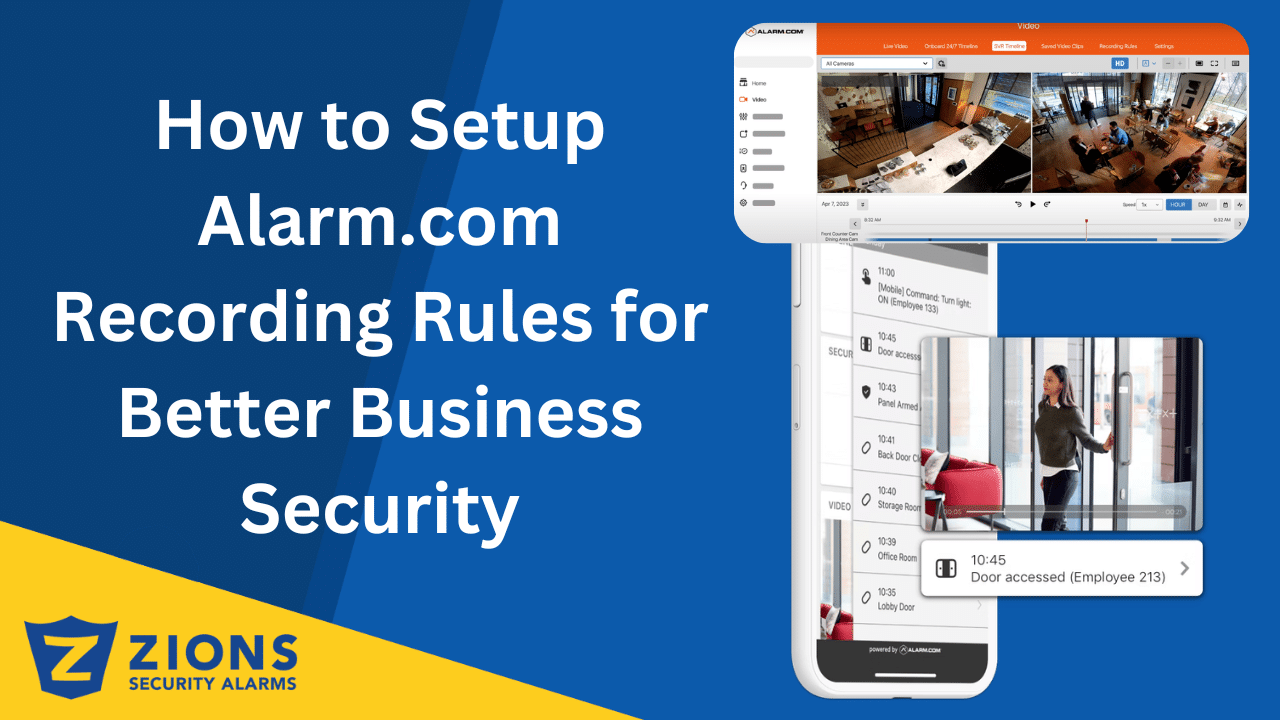
24 Feb How to Set Up Recording Rules on Alarm.com for Business
Security cameras are most effective when they capture the right moments, not just hours of empty footage. Recording rules from Alarm.com allow business owners to control when cameras record, what triggers them, and who gets notified.
With the right rules in place, your system becomes smarter, more efficient, and easier to manage. Instead of reviewing endless videos, you get clips that matter and alerts that help you respond quickly. This guide explains how business owners can set up recording rules and use them to improve safety and operations.
Why Alarm.com Recording Rules for Business Security Matters
Alarm.com recording rules for business
Many businesses install cameras but never customize how they record. Recording rules change that by letting you automate when footage is captured and how your system reacts to activity.
When configured properly, recording rules can help you:
- Capture suspicious activity the moment it happens
- Record events tied to doors, alarms, or motion
- Monitor staff entrances and restricted areas
- Reduce unnecessary recordings that waste storage space
- Receive alerts only when something important occurs
This means your security system works proactively rather than passively.
Types of Recording Rules Businesses Can Use
Understanding the different types of helps you tailor camera behavior to match your schedule, layout, and security priorities. Alarm.com allows several types of recording triggers that work well for commercial environments, giving business owners flexibility in how their cameras respond to activity. Instead of relying on continuous recording, you can choose specific events that matter most to your operations. Cameras can start recording when motion is detected in important areas, when doors or sensors are triggered, or when activity occurs during certain hours. This level of customization helps reduce unnecessary footage, saves storage space, and ensures you receive video clips tied to meaningful events. By tailoring recording triggers to match your business schedule and layout, your security system becomes more efficient, easier to review, and better suited to protect your property, employees, and customers.
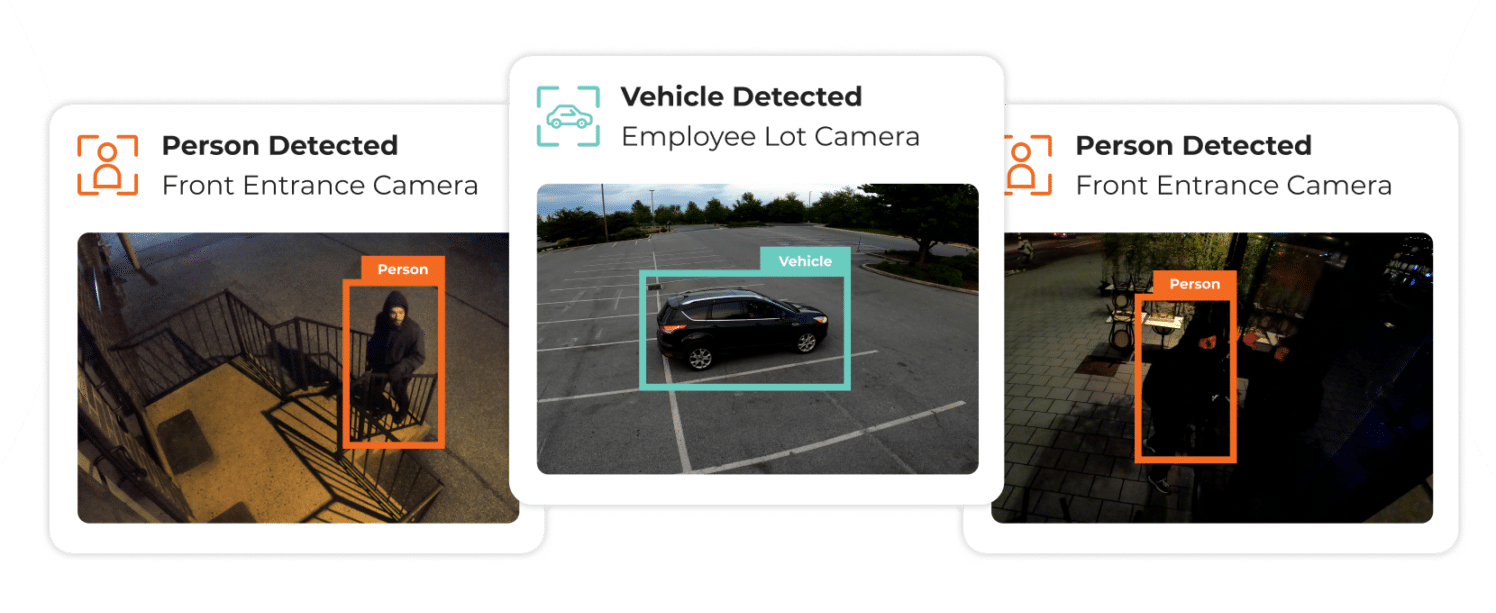
- Motion or Analytics-Based Recording: Your cameras record when movement occurs in selected areas. This works well for entrances, hallways, storage rooms, and customer areas.
- Sensor-Triggered Recording: You can link cameras to doors, windows, or alarm sensors so recording starts when they open or close.
This is useful for:- Employee entrances
- Delivery doors
- Restricted office areas
- After-hours access points
- Scheduled Recording Rules: Businesses can choose when cameras actively record or send alerts. For example:
- Monitor only after business hours
- Record activity during closing procedures
- Reduce alerts during busy daytime periods
This ensures your system matches how your business operates.
To create an Alarm video recording rule:
Once your cameras are connected to your account, you can configure recording rules directly from the Alarm.com website or mobile app.
- Log in to the Alarm.com customer website.

- Click Video.

- Click Recording Rules.

- Click Add New Rule.
- Click Alarm.
- Name the new recording rule.
- Using the When an alarm is triggered by dropdown menu, select which sensor alarms should trigger a clip recording.
- In During this time frame, select the time frame for the rule to be active.

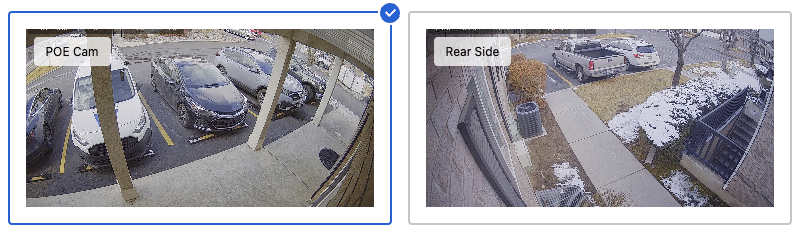
- In Record clips from these cameras, click to select the cameras that should record.
Alarm.com recording rules for business
- In Video Clip Recipients, click Add Recipients to be notified when the recording rule is triggered. (if you want any notifications, if not leave this blank)
- Click the entries in the Address Book that are to be notified, or click New to add a new Address Book entry.
- Once all desired recipients are selected, click Close.

- Verify the recording rule is configured with the correct settings.
- Click Save Rule.
Once saved, your cameras begin recording based on the rule you created.
Smart Recording Rule Ideas for Businesses
If you are unsure where to start, here are common setups that work well for many businesses:
- Choose the default options: Then check after a week or two to see if you need to modify the rule to make it to the end of the month without increasing your clips
- After-hours motion detection: Receive alerts if someone enters your property when the business is closed.
- Door-triggered recording: Capture video automatically whenever a delivery or employee entrance door opens.
- Restricted area monitoring: Set cameras to record when someone enters stockrooms, offices, or storage areas.
- Closing time monitoring: Ensure cameras actively record during closing procedures for added safety.
- Reduce clips used: If you are using too many clips try to make the area smaller or try to increase the time between clips. If you still need more clips talk to us about more options like adding 24/7 recording with SD Cards or an SVR.
These small adjustments can dramatically improve how useful your security system becomes.
Make Your Security System Work Smarter
When your Alarm.com recording rules for business match how your company operates, you gain stronger protection, better awareness, and greater peace of mind. Recording rules transform your cameras from simple recording devices into intelligent business tools. Instead of sorting through endless footage, you get organized clips, meaningful alerts, and better visibility into your daily operations. When your recording rules match how your business functions, you gain stronger protection, improved awareness, and greater peace of mind. Contact us today to make your business security smarter and more effective.
No Comments