

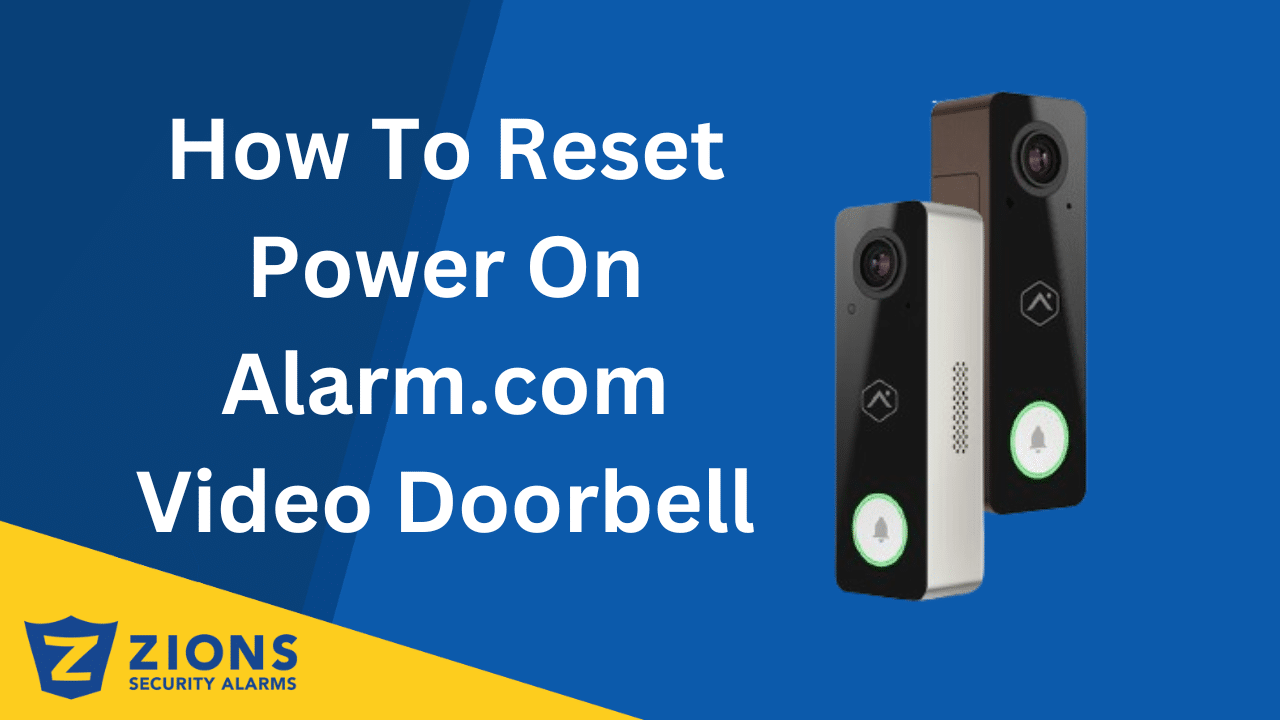
20 Nov How to Reset Power on Alarm.com Video Doorbell
If your Alarm.com Video Doorbell is acting up, a simple power cycle might be all you need to get it working again. Such can be the case if it is not recording, not responding, or appearing as offline in the app. This method does not reset your settings or remove the device; it only reboots the doorbell to refresh its power and connection.
Performing a quick power reset can often fix temporary performance issues, restore live video streaming, and help your doorbell reconnect to your Wi-Fi network. It can also clear up minor software glitches that may prevent alerts or recordings from showing properly in the app. Power cycling is a safe and effective first step before trying advanced troubleshooting. It helps ensure that your doorbell is running with a clean restart and a stable network connection. Regularly rebooting your video doorbell can also improve performance and prevent connection drops over time.
In this blog post, we’ll walk you through How to Reset Power on an Alarm.com Video Doorbell using the button on the device—no breaker flipping required.
What Is a Power Cycle?
A power cycle is just a way to restart the doorbell without using your circuit breaker or doing a full reset. Think of it as turning your phone off and on. It clears up minor glitches, helps it reconnect to Wi-Fi, and gets it running smoothly again.
- Your doorbell is offline in the app
- The video stream isn’t loading
- Motion detection or chime isn’t working
- You’re troubleshooting minor performance issues
It’s a quick and reliable first step to restore normal operation before trying more advanced fixes or contacting support.
How to Reset Power on Alarm.com Video Doorbell
Follow these easy steps to power cycle your Alarm.com video doorbell:
- Press and Hold the Doorbell Button:
• Locate the main button on your video doorbell—the same one visitors press to ring. Press and hold it continuously for 40 to 45 seconds. Make sure you do not release the button early, as timing is important for a proper reboot. Holding it for the full duration ensures the doorbell fully powers down before restarting - Watch for the Yellow Flash:
• While holding the button, keep an eye on the LED ring around the doorbell. When the light flashes yellow, that’s your signal to release the button. The yellow flash indicates that the power reset process has been initiated. - Wait for the Red Light:
• After releasing the button, the LED will start flashing red to show that the doorbell is rebooting. This step can take up to a minute. When the light turns solid red, it means the device is finishing its boot-up process and preparing to reconnect to your network. - Wait for Green:
• Once the reboot is complete, the LED will change to solid green. This indicates that your Alarm.com Video Doorbell has successfully reconnected to your Wi-Fi and the Alarm.com app. You can now check your live feed to confirm that notifications and recordings are working properly.
If your doorbell does not turn green after a few minutes, make sure your Wi-Fi is active and the doorbell has a strong signal. You can also try unplugging your router for 30 seconds to refresh your internet connection, then check the doorbell again. Performing this quick power cycle often resolves most connectivity or performance issues without needing to reset your device completely.
Understanding the LED Light Colors
The LED ring on the Alarm.com Video Doorbell gives you a clear status update:
- 🟢Green: Connected to the internet and working properly ✅
- 🔴Red: Not connected to the internet: either still in the process of rebooting or simply offline❌
- ⚪White: Doorbell is in Access Point mode (this is where you would connect to the doorbell on your phone’s wifi and go to 192.168.0.1 so you can connect it to Wi-Fi)
- 🔵Blue: Doorbell is in WPS Mode to reconnect to Wi-Fi
- 🟡Yellow (during reset): Indicates it’s ready to reboot when releasing the button
These colors can help you understand the doorbell’s current status during and after a power cycle.
Tip
Make sure your Wi-Fi signal is strong where the doorbell is installed. A weak connection can cause the device to appear offline or stay stuck on certain LED colors. If the light remains white or red after performing a power cycle, it usually points to a network issue rather than a problem with the doorbell itself. In that case, try rebooting your router, checking your internet connection, or moving your router closer to the doorbell for a stronger signal. Ensuring a stable Wi-Fi connection helps the Alarm.com Video Doorbell stay responsive and connected to your app.
Wrap-Up
Power cycling your Alarm.com Video Doorbell is a quick and simple fix. It resolves common performance issues without needing any tools, apps, or complicated settings. It’s an effective first step when your doorbell is offline, not recording, or failing to respond through the Alarm.com app. Regularly rebooting your video doorbell can also help maintain a stable connection, improve video quality, and prevent minor glitches from affecting performance. This method is safe to use and does not erase your custom settings or remove the device from your account.
If the doorbell continues to act up after a power cycle, double-check your Wi-Fi signal strength and make sure your router is functioning properly. You can also restart your internet router or check the Alarm.com app for any device updates. Try this power reset whenever you notice a problem; it often restores normal operation in just a few minutes. Be sure to save this guide for future use if you found it helpful! Also don’t hesitate to share it with someone else who might need a quick fix for their Alarm.com Video Doorbell.
If you’re still having issues after trying a power cycle, Contact us today at Zions Security Alarms. We’re happy to walk you through the process or schedule a service visit to make sure your system is running perfectly.
No Comments