


23 Oct How to Find the IMEI Number of Your IQ4 Panel
What is an IMEI Number and Why It Matters for the IQ4 Panel?
When working with cellular-enabled devices, the term IMEI often comes up, especially when activating or troubleshooting a security panel like the IQ4 Panel by Qolsys. IMEI stands for International Mobile Equipment Identity, a unique 15-digit number that identifies cellular devices on the network. Think of it as your panel’s fingerprint for cellular communication.
For the IQ4 Panel, the IMEI number is linked to its built-in LTE cellular communicator, which connects the panel to the Alarm.com platform. This connection allows for remote control, system alerts, and secure monitoring — even when Wi-Fi isn’t available. Without the IMEI, your panel can’t be properly registered or activated on the Alarm.com cellular network.
Why You Might Need the IMEI Number
There are several common scenarios where you’ll need to locate the IMEI:
- Panel Activation: When setting up your system with Alarm.com or your monitoring provider.
- Troubleshooting Cellular Issues: If your panel is having connectivity issues, tech support may ask for the IMEI to help diagnose the problem.
- Transferring Monitoring Services: Switching monitoring providers or migrating to a new Alarm.com account may require the IMEI.
- Warranty and Repairs: Submitting a warranty claim or requesting a hardware replacement may also involve the IMEI number.
Knowing how to find the IMEI on your IQ4 Panel is simple and saves time during installation or support calls.
Step-by-Step: How to Find the IMEI Number of Your IQ4 Panel
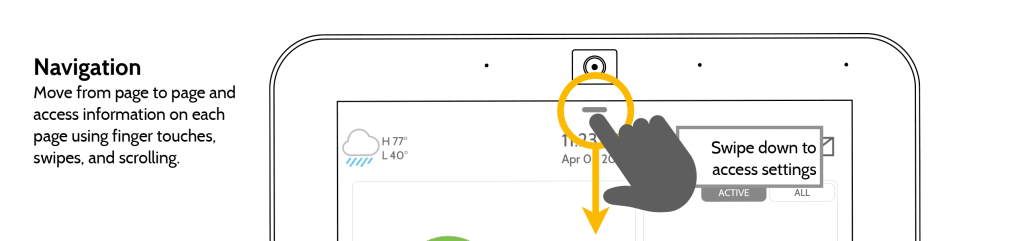
Step 1: Access the Settings Menu
- From the home screen of your IQ4 Panel, tap the Settings gear icon located in the bottom-right corner of the screen.

Step 2: Go to “Advanced Settings” Section
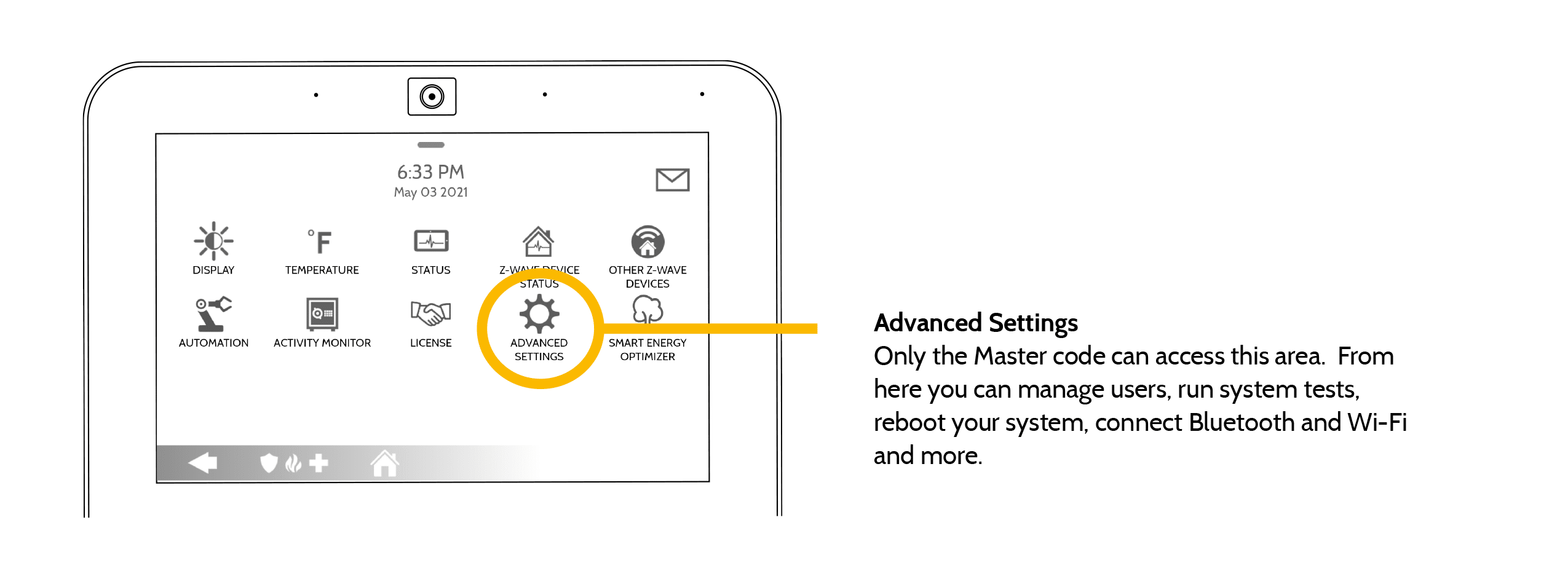
Step 3: Enter the Installer Code
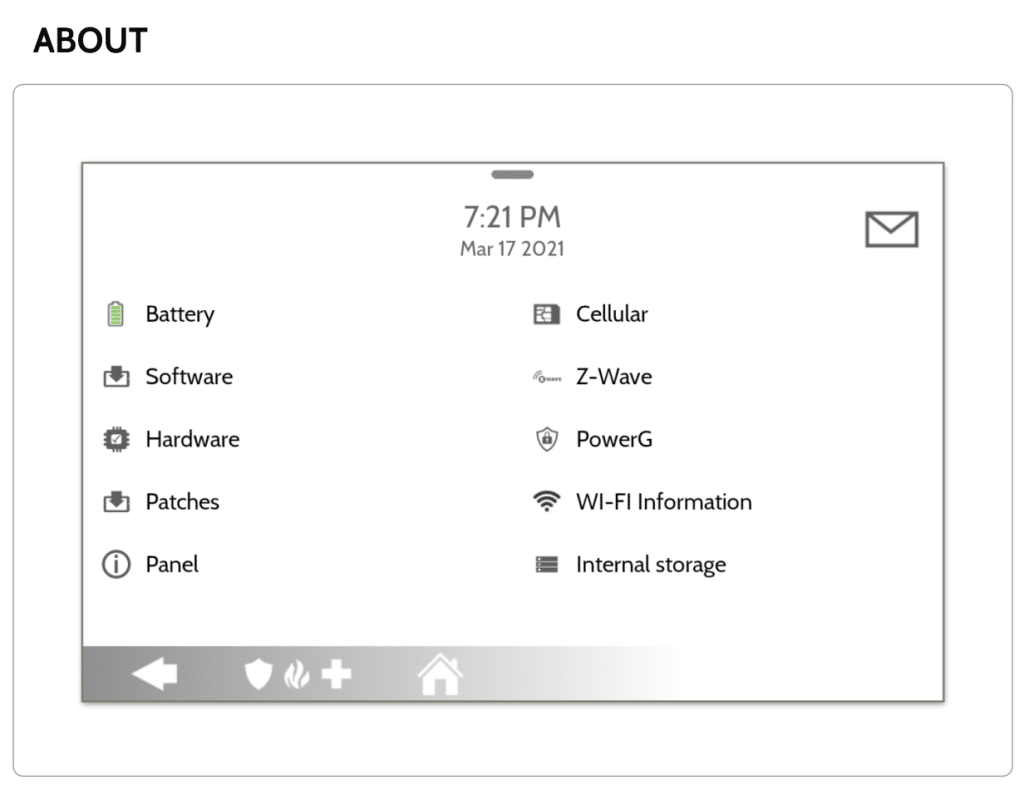
Step 4: Go to “About” Section
- Once you’re in the advanced settings menu, scroll down and tap “About”. This section gives you detailed information about the panel’s firmware, hardware, and communication modules.
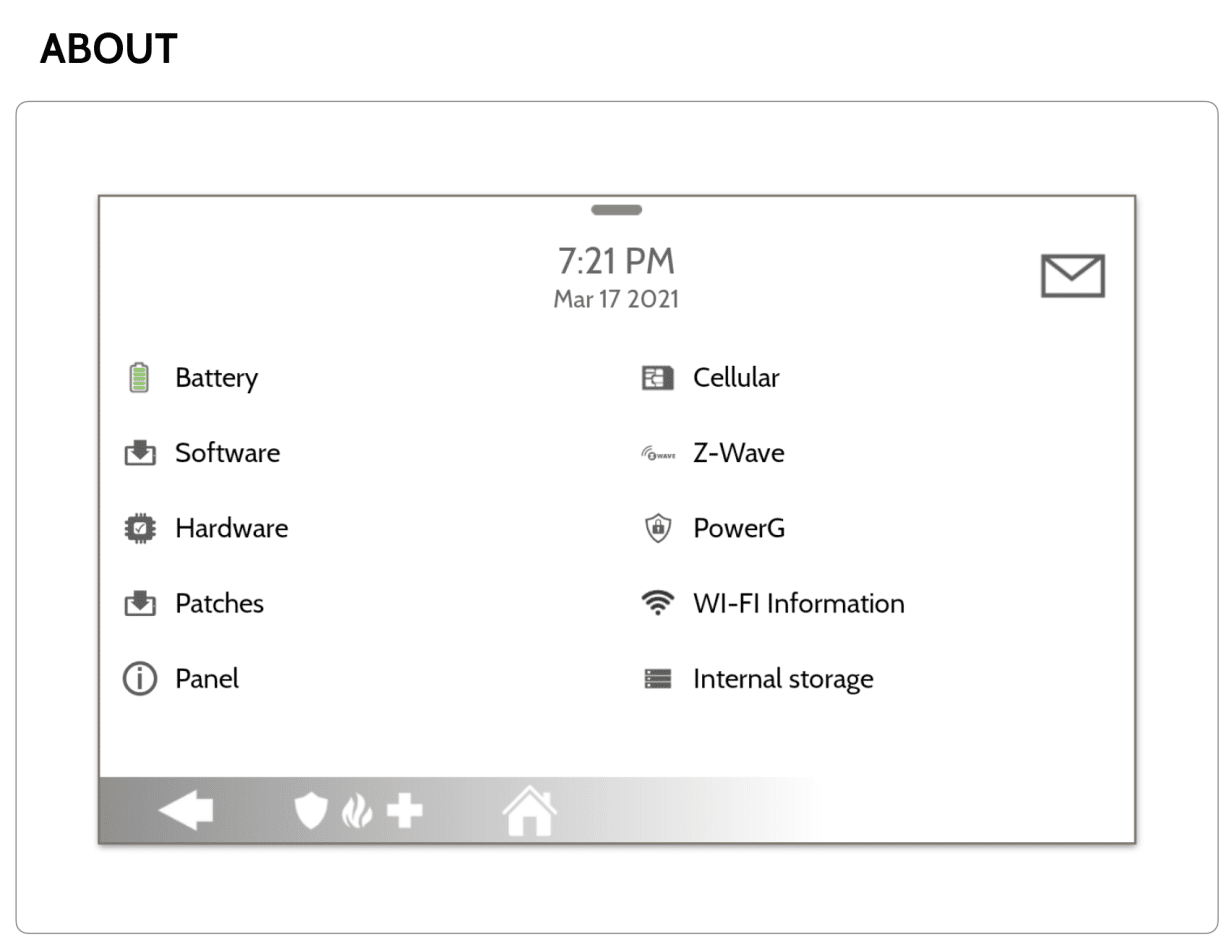
Step 5: Tap on “Cellular”
- In the About menu, choose “Cellular” to view information related to the panel’s built-in cellular radio. This is where you’ll find the IMEI number.

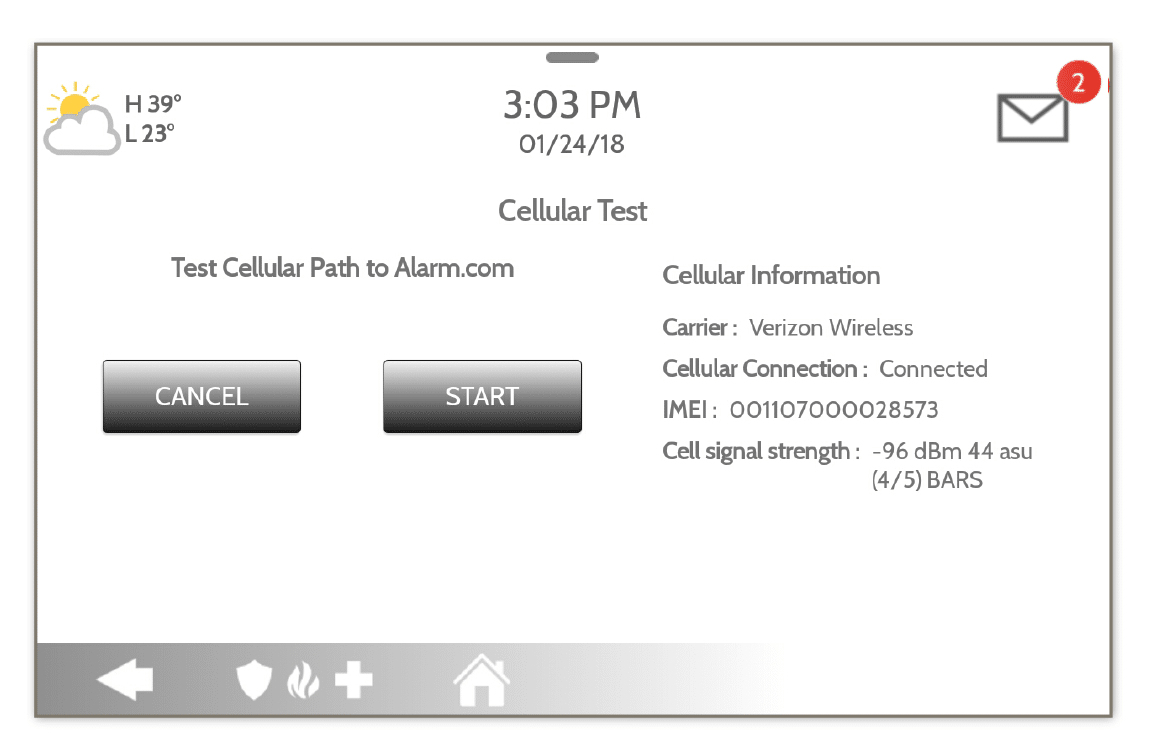
Step 6: View the IMEI Number
- Your panel’s IMEI number will be listed on the screen — typically labeled as “IMEI” or “Cellular Module ID.” It’s a 15-digit number unique to your device.
- You may also see:
- SIM ICCID (for the SIM card)
- Signal strength
- Carrier information
- Connection status
Write down or take a photo of the IMEI for future reference, especially if you’re about to activate the panel.
Additional Tips
It’s a good idea to store your IMEI number in a secure place in case you need it later for activation, troubleshooting, or warranty purposes. Avoid sharing it publicly, as it’s a unique identifier tied to your panel’s cellular connection and could be misused. If your IQ4 Panel is using dual-path communication (both Wi-Fi and LTE), the IMEI ensures your system stays connected even during internet outages. Having the IMEI ready can also speed up the process when you’re contacting support, transferring services, or ordering a replacement device.
Final Thoughts
The IMEI number is a critical identifier for your IQ4 Panel’s cellular connectivity. Whether you’re activating your system, working with tech support, or transferring services, knowing how to find this number will make the process smoother and faster.
If you’re setting up your panel for the first time or need help troubleshooting cellular issues, the experts at Zions Security Alarms are here to help. We provide professional installation, support, and activation for Alarm.com-compatible panels like the IQ4.
No Comments