

07 Apr How to Power Cycle (Reboot) the IQ4 Panel
If your IQ4 Panel is frozen, running slowly, or not responding properly, a power cycle (reboot) is usually the quickest solution. The IQ4 Panel by Qolsys serves as the main hub of your security and automation system. It connects your sensors, controls your alarm, and manages smart home devices. Because it works like a small computer, it may occasionally need a restart to clear temporary glitches.
In most situations, a simple reboot resolves the problem. A factory reset is rarely necessary and should only be performed by your alarm provider. Below, you’ll learn when to reboot your panel and how to safely power cycle it, whether the screen is working or completely frozen.
Why a Power Cycle Fixes Most Issues
Over time, minor software bugs, temporary memory overload, or communication delays can cause the panel to slow down. Fortunately, restarting the system refreshes the internal processes and restores normal operation.
A power cycle can help fix:
- A frozen or unresponsive touchscreen
- Delayed notifications
- Trouble connecting to Wi-Fi
- Minor sensor communication errors
- Sluggish menu performance
Most importantly, a reboot does not erase your settings, user codes, or connected devices. It simply restarts the system safely.
Option 1: Reboot from the Settings Menu (If the Screen Works)
If the touchscreen still responds, use the built-in reboot option. This method is the easiest and safest way to restart the IQ4 Panel.
- Access the Settings Menu:
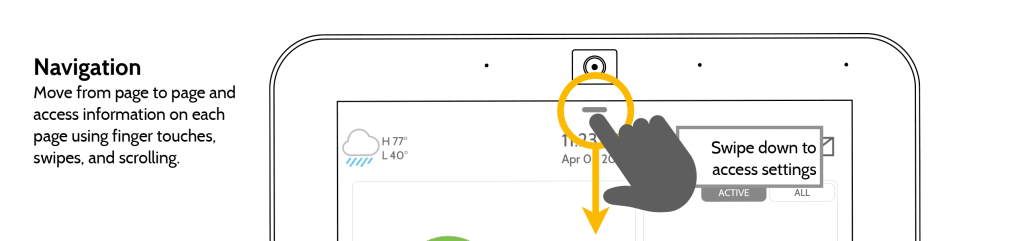
- Swipe down from the top of the screen to reveal the settings tray.
- Tap “Settings.”
- Enter Advanced Settings:
- Tap “Advanced Settings.”
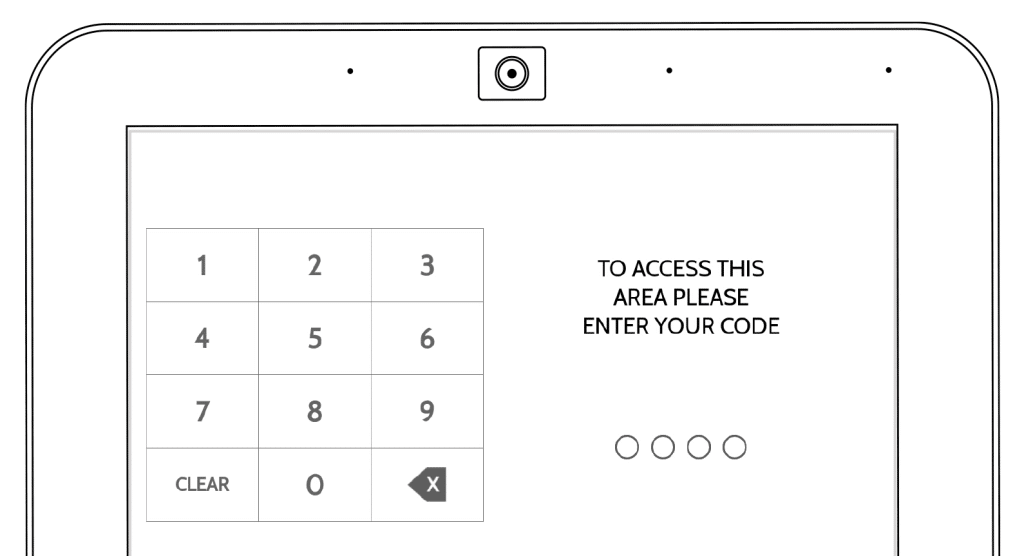
- Enter the Master Code (default is 1234, unless changed by the installer).
- Navigate to the Reset Menu:
- In the Advanced Settings menu, scroll down and tap “Installation.”
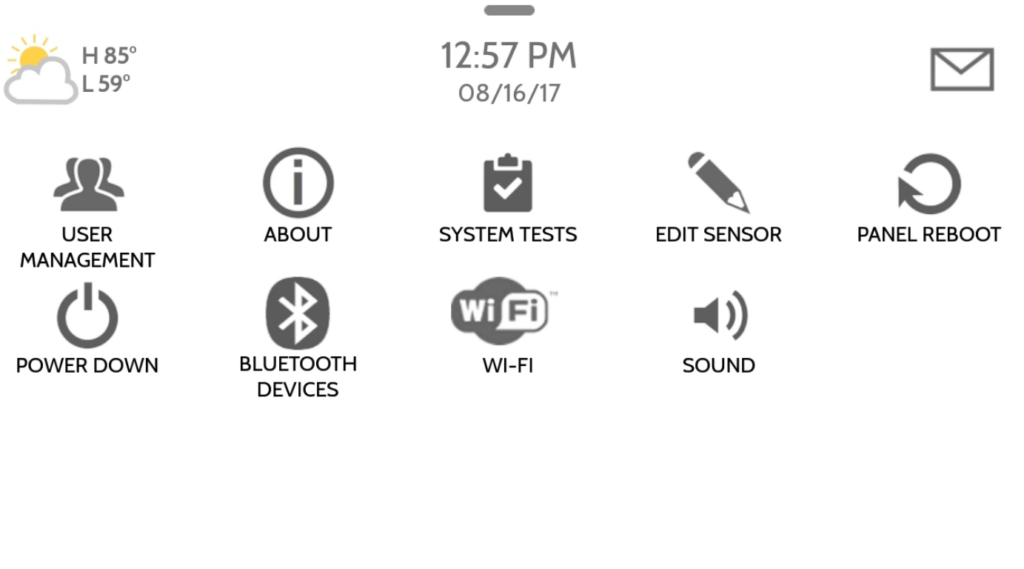
- Select “Dealer Settings” or “System Tests” (based on panel version).
- Tap “Panel Reboot” if you want to restart.
- Wait for the Panel to Reboot:
- This may take a few minutes. The panel will restart and display the initial setup screen, just like when it was first installed.

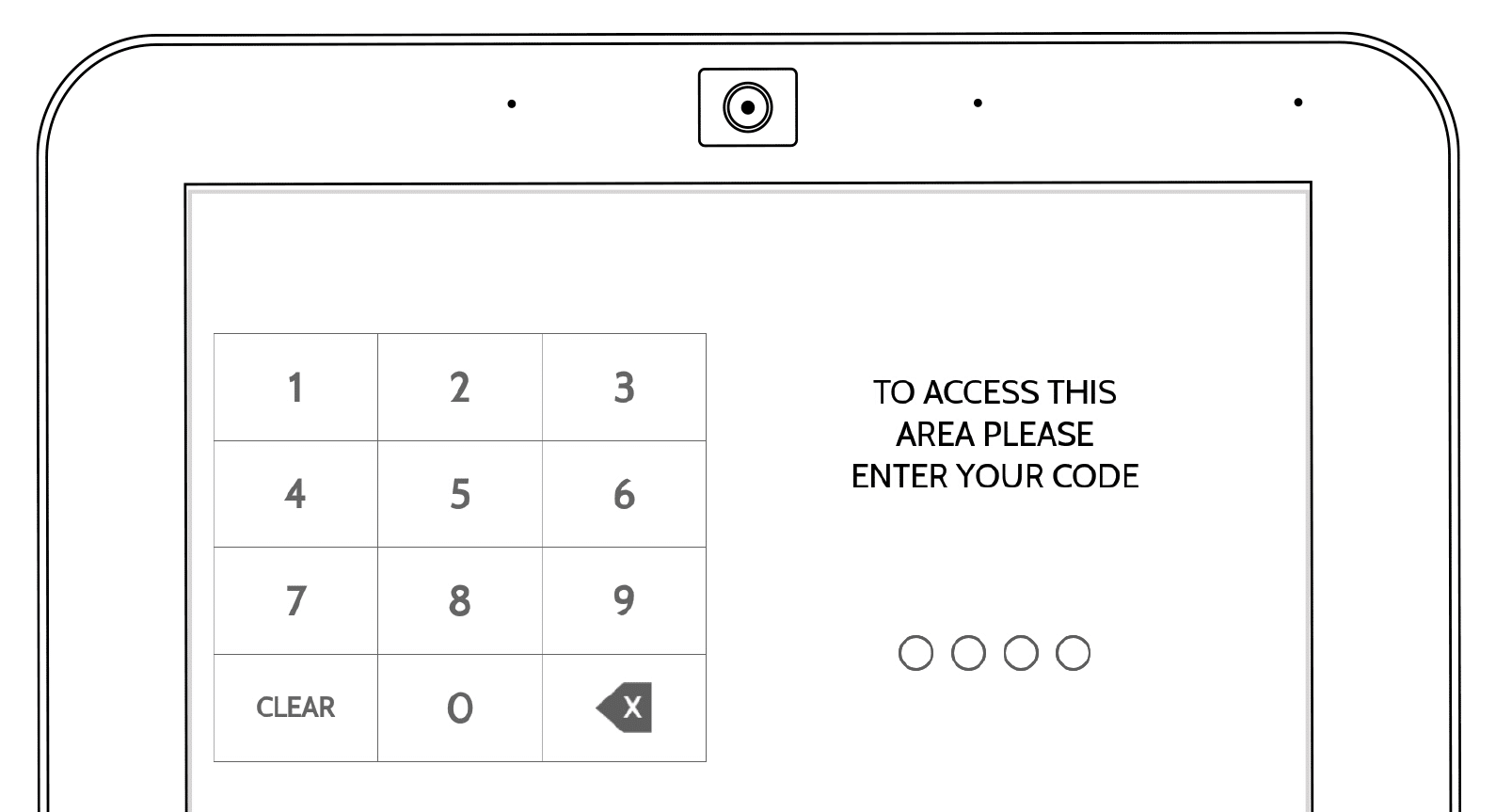
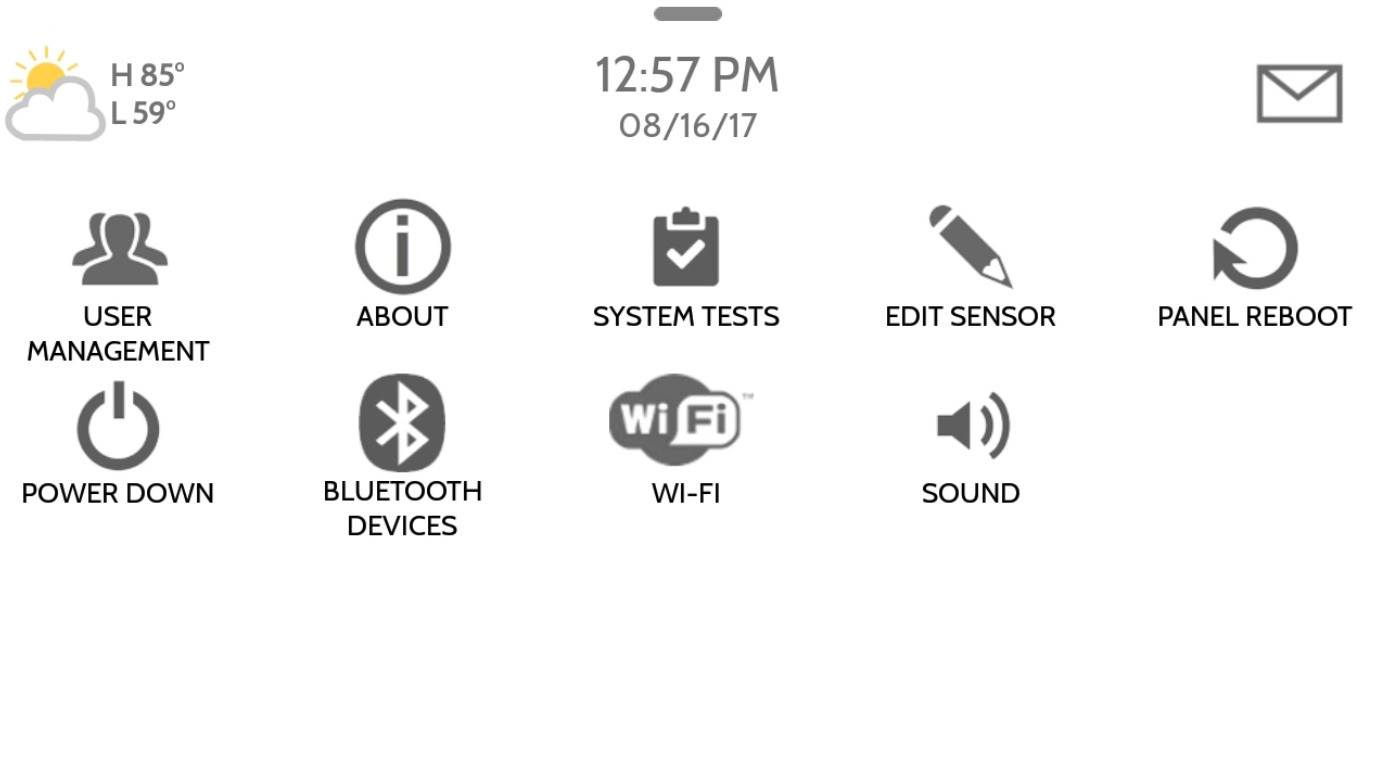
Option 2: How to Power Cycle the IQ4 Panel If It Is Frozen
If the screen does not respond at all, you will need to manually remove power from the system. This method safely forces a full reboot.
- Remove the Panel from the Wall:
- Gently lift the IQ4 Panel from its backplate. Most panels snap upward and then pull outward.
- Unplug the Transformer
- Locate the plug-in transformer that powers the panel. It is usually installed in a nearby wall outlet. Unplug it from the outlet.
- Disconnect the Backup Battery
- Turn the panel around and carefully disconnect the backup battery connector.
- Wait 30–60 Seconds
- Allow the panel to fully power down. Waiting ensures that all stored electrical charge drains from the system.
- Restore Power in the Correct Order
- Reconnect the backup battery first.
- Then plug the transformer back into the wall outlet.
- Finally, place the panel back onto the wall mount.
The IQ4 Panel should automatically begin powering up. Within a few minutes, the system should return to the main screen.
What If the IQ4 Panel Still Has Problems?
If the panel continues to freeze or show errors after a power cycle, the issue may involve Wi-Fi connectivity, firmware updates, or a hardware concern. In that case, contact your alarm provider for further troubleshooting. It is important to avoid performing a factory reset unless technical support specifically instructs you to do so. A factory reset removes all programming, sensor pairings, and account information. Most customers never need to perform this step.
Important Reminders Before You Start
- A power cycle will not delete your programming.
- Always reconnect the battery before plugging the transformer back in.
- Handle the panel carefully when removing it from the wall.
- If you feel unsure, contact your alarm company for assistance.
Need Help?
If you’re unsure about performing a hard reset on your IQ4 Panel, or if you encounter any issues during the process, don’t hesitate to Contact Us. At Zions Security Alarms, we’re here to help you every step of the way.
No Comments