

30 Dec How to Reconnect Your IQ4 Panel to Wi-Fi
The IQ4 Panel is the heart of your smart security system, giving you control over alarms, sensors, cameras, automation devices, and more, all in one place. If you’re wondering how to reconnect your IQ4 Panel to Wi-Fi, you’re in the right place. Like any device connected to the internet, your panel depends on a reliable Wi-Fi connection to stay online and work properly.
If your IQ4 Panel has gone offline or shows a “Wi-Fi Disconnected” status, don’t worry. It’s a common issue and easy to fix. In this blog, we’ll cover why your panel may disconnect, the steps to reconnect it, and tips to keep it connected.
🔌 Why Did My IQ4 Panel Disconnect from Wi-Fi?
There are several reasons your panel might lose its connection:
- Router Reset or Power Outage – If your router was restarted or power was lost, your panel may not reconnect automatically.
- Wi-Fi Name or Password Change – If you changed your Wi-Fi credentials, your panel will need to be reconnected using the new information.
- Weak Signal Strength – Your panel might be too far from the router, or there could be interference from walls or other objects.
- Network Congestion – Too many devices on your home network can slow down or interrupt connectivity.
- Firmware Glitches – Occasionally, software bugs can cause disconnection, but these are usually resolved through system updates.
📶 Steps to Reconnect Your IQ4 Panel to Wi-Fi
Here’s how to manually reconnect your panel to your Wi-Fi network:
- Move your panel screen swipe to the left and locate the Wi-Fi settings
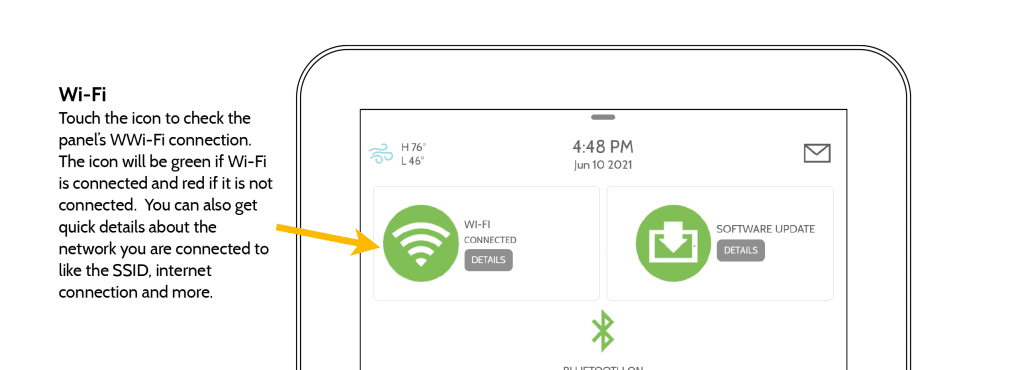
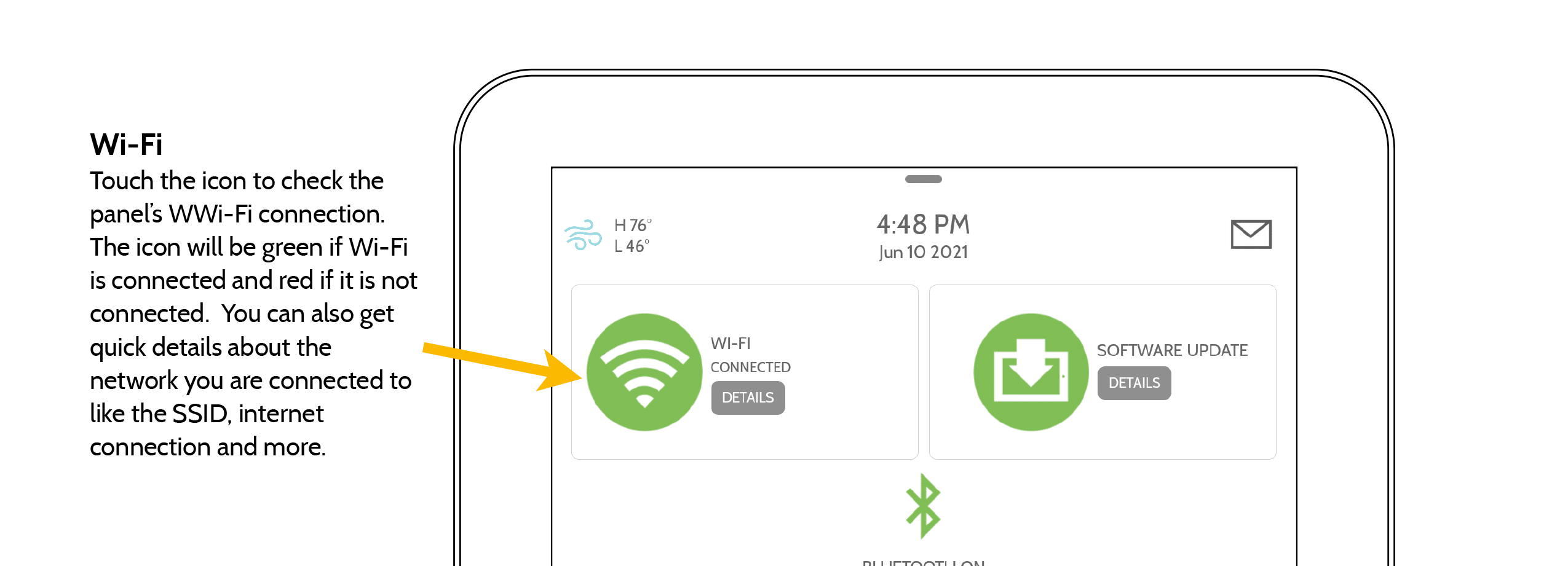
- On your Wi-Fi settings, click “Details”
- Enter your Master Code (or Dealer Code).
- Choose Wi-Fi Settings.
- Select your Wi-Fi network name from the list.
- Enter your Wi-Fi password, then tap Connect.
- A message should confirm that your panel is now online.
Tip: If you don’t see your network, try rebooting both the router and the panel before scanning again.
💡 Tips to Keep Your IQ4 Panel Connected
To maintain a stable Wi-Fi connection for your IQ4 Panel, it’s important to ensure the panel is placed within a strong signal range of your router. Wi-Fi performance can drop significantly if the panel is behind thick walls, metal doors, or large appliances, so consider relocating either the panel or router if the signal seems weak. Using a 2.4GHz Wi-Fi network is often more reliable for smart home devices because it offers greater range compared to 5GHz, even if it’s slightly slower. Also, make sure your Wi-Fi network name (SSID) and password are simple and do not include special characters that could cause connection issues.
If your home is large or has multiple floors, a mesh Wi-Fi system or a signal extender can help eliminate dead zones and improve reliability. Lastly, keep your IQ4 Panel firmware up to date. New firmware releases often include bug fixes and performance improvements that help prevent connectivity problems.
Final Thoughts
Your IQ4 Panel is designed for reliable and intelligent security, but like any connected device, it needs a strong Wi-Fi connection to stay functional. Reconnecting it takes just a few steps. If you continue having issues, it may be time to assess your home’s network coverage or router settings.
If you need more help, feel free to Contact Us directly here in our website.
No Comments